Economy
Manufacturing and inventory
Assign production, resolve shortages and manage completed or stored units.
Reviewed
This guide follows the current client. Available actions depend on your empire, permissions and the release running in your world. Confirmed cancel-all queue reset awaits the updated client; existing queue editing must be enabled.
Start production
Open Economy → Manufacturing. Use the production tab to filter available products and inspect their resources, stock, workers and run counts. Assign workers to an available product or an unambiguous current job. Products waiting in a queue, or present in multiple jobs, are edited through their queues.
- Choose an unlocked product and check its complete requirements.
- For a queue, enter a name, product, quantity and at least one worker.
- Create the queue, expand it and inspect its status. Add or reorder later jobs as needed.
- Use the inventory and recent manufacturing log to confirm completed output.
Read the progress display
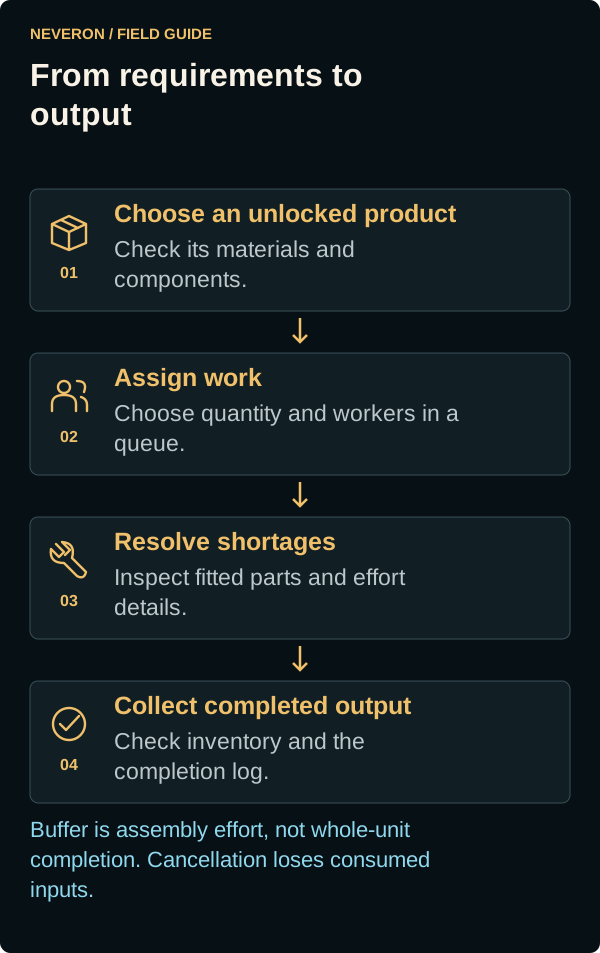
Vehicle and BattleMech Buffer percentages describe accumulated effort relative to assembly cost; they are not whole-unit completion percentages. Hover over or focus the progress display to inspect fitted components, component effort, final assembly effort and next-unit estimates.
A shortage may block a component stage even when effort has accumulated. Check the resources tab and available inventory, then produce or buy the missing items. Use the job's own displayed requirements: already-started work can retain an earlier recipe.
Pause, cancel or finish
Zero workers preserves saved progress. Paused queues with unfinished jobs keep workers reserved. When every job completes or is removed, the queue disappears and releases its workers automatically.
Cancel Job discards unfinished work and consumed materials or components. Read the confirmation before accepting. Already completed products remain in inventory.
Reset all production queues
With the updated client, use Cancel all manufacturing queues in the Manufacturing queue panel. The second confirmation names your empire and the number of queues. Accepting closes that captured set, including queues above the current creation limit, using the same rules as Remove Queue: unfinished work and consumed inputs are lost, completed output stays, and assigned workers return. There is no keep-20 option.
Cancellations run one at a time. The progress message shows how many queues have closed. Dismissing confirmation changes nothing. A queue created afterward is outside that reset. If you navigate away or a queue changes, further cancellation pauses; return to Manufacturing, allow an unfinished command to recover, then use Resume cancelling queues and confirm the remainder. Earlier successful cancellations stay committed. If browser storage cannot save recovery, keep the page open and follow the displayed message.
Stored and mothballed units
The inventory tab includes Mothballed Unit Storage. Mothballing preserves individual unit identities with a reduced support load. Before recommissioning, review the refurbishment cost and delay and choose an owned destination. Storage is not immediate combat readiness.
Faction requests and trading
The faction requests tab shows production your empire can help supply. Track assignment and completion there. Use inventory selling controls to offer eligible stock and Market to inspect public or faction listings. Check quantities and prices rather than treating reference values as guaranteed sales.