Economy
Manufacturing licences
Request same-faction manufacturing licences, review counteroffers and track per-item royalties, quantity limits and expiry.
Reviewed
Same-account licences and filtering of completed research require the updated game server; rollout is pending. Implemented locally; requires the matching client/server update and world activation. Not verified live. The left-hand licensed catalogue, allowance counters and progress display require the matching client/server update; live acceptance is pending.
Share manufacturing rights
Manufacturing licensing requires the matching game update and activation in your world. In Manufacturing, select Licences. Use Available designs to request a licence and Your proposals and agreements to manage negotiations and accepted rights. Licences grant production rights without transferring research. Both empires must be distinct current members of the same faction and world. They may belong to the same account; this requires the updated game server. Only empire owners can request or agree terms; authorized delegates can inspect agreements and run accepted manufacturing work.
Request a manufacturing licence
Start in the Available designs subtab. Switching subtabs preserves your filters and draft terms. After a request is successfully sent, the agreements subtab opens automatically. Incoming updates do not change your selected subtab.
- Use Research type to filter designs, or Find a design or owner to search. Each listing shows its research owner. Select a mech, vehicle or infantry name to open its unit details; the same links are available on agreement cards. If several empires own the same design, each has its own listing.
- Select Request licence on the listing you want. Your current empire is automatically the requesting empire; there is no member or recipient dropdown.
- Review the included component rights and their quantities per unit, then enter maximum output quantity, cash royalty per finished unit and expiry in your local time. Select Review request, check the design, both empires and maximum royalty exposure, then select Send request.
- The research owner sees the request in Your proposals and agreements and can Accept terms, Decline proposal or make a Counteroffer.
The catalogue includes eligible unit and weapon designs researched by other faction empires. Pending faction applications and your currently selected empire are excluded. Other eligible empires on your account are included. To license between your own empires, send the request from the receiving empire, then switch to the research-owning empire to accept or counter it. Switch back to the receiving empire to accept any counteroffer. Normal royalties and limits still apply. Equipment or other filters with no eligible designs show an empty list. If a listing disappears while you are editing, cancel editing and choose a current listing.
Designs you can manufacture through completed research are hidden from every owner listing. Unfinished research does not hide a design. Designs with a pending request or counteroffer, or a current manufacturing licence, are also hidden from Available designs for every owner. Manage them in Your proposals and agreements. For designs you have not completed researching, listings return automatically when no pending or current agreement remains, including after expiry, rejection, withdrawal, revocation or completion of the licence's output allowance. Items still in production count toward a current licence.
Review a counteroffer
In Your proposals and agreements, the research owner can change quantity, royalty and expiry in the inline counteroffer form, then select Review counteroffer and Send counteroffer. The design and both empires stay fixed. The requesting empire must select Accept terms on the counteroffer to activate the licence, or Decline proposal to reject it. Sending a counteroffer never activates rights by itself. Proposal history keeps the earlier terms visible.
While your proposal awaits a response, you can select Withdraw proposal. Only the receiving owner can accept it. If another action changes the terms during review, the server rejects the old version and shows the current agreement for review.
Royalties must be at least 10% of the design's market value, rounded up to whole cash (minimum 1 cash per item), using the same valuation as faction sales. The royalty field shows this minimum and new requests start at that amount. Requests, counteroffers and acceptance are checked by the server. If the market value rises, terms below the current minimum cannot be accepted and an existing licence cannot start new items; already admitted items finish at their agreed royalty. Use a counteroffer for a pending request. For an active licence, its owner must revoke it before you can request replacement terms. Royalties remain positive whole cash amounts. The default limits are one million items, one trillion cash per item and 10 game years at the standard game speed; the form converts your world's expiry limit into game years. Choose the expiry date in your local time. Only one unexpired, unexhausted active licence for a particular recipient and design is accepted at a time. Active licences cannot be countered or repriced.
Manufacture licensed items
With the matching client and server update, the left-hand Available Manufacturing list includes your licensed designs and their progress. Under each design, each agreement shows produced / limit, in progress and remaining counts. Remaining allowance excludes both completed and reserved units. It can reach zero while admitted work is still running; that work stays visible. Queue controls manage licensed production, and the left-hand worker and run-count fields summarize it. Expired or revoked agreements remain visible while they still have queued work.
In Manufacturing queues, select the design marked Licensed, which also shows its royalty. Set a finite quantity and assign workers. The queue retains that agreement; it cannot switch silently to a different price. Materials, factory capacity and staffing are still required. Licensed designs do not unlock research or related products.
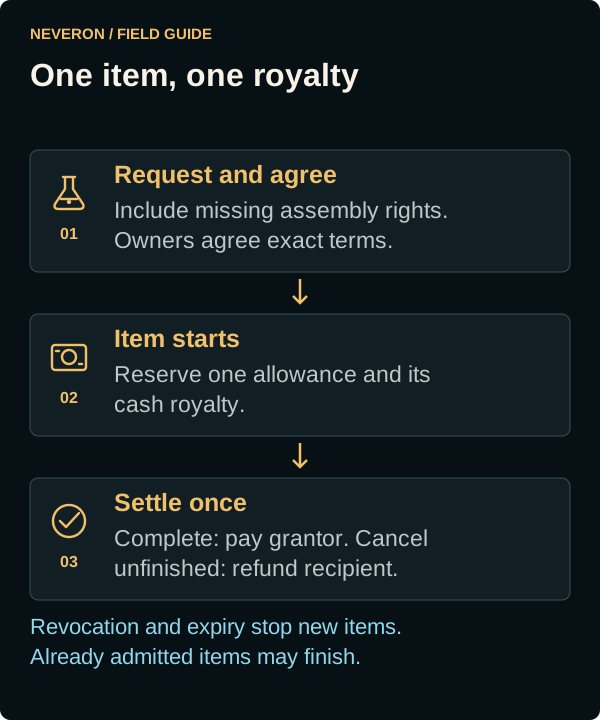
A new request automatically includes the assembly components you cannot currently produce through completed research or a usable component licence. The request form, confirmation and agreement show their quantities per finished unit. The research owner must own those component designs too; if they cannot grant all missing rights, select another owner or obtain the missing rights first. A counteroffer keeps the same component list. If your required rights change while editing, select the current listing and review it again.
At each item start, one output allowance and its royalty are reserved together. Reserved cash is no longer spendable. Completion puts the item in your inventory and pays the grantor once. Licensing checks each new item separately, including repeats; a queued quantity is not an advance reservation. Each licensed item starts at a fresh production boundary, without carrying excess effort from the previous item.
Included components may be manufactured automatically only while assembling the licensed design. They do not unlock standalone component production, related units or research. The agreed cash royalty covers the finished unit and its included components; there is no additional component royalty. Component production still uses materials and worker effort. Components already covered by separate licences must be produced into stock under those licences. Stock you happen to own does not remove the request for missing production rights. Existing agreements keep their original component coverage; they are not expanded automatically.
Expiry, revocation and cancellation
The grantor can select Revoke licence to stop new starts. Expiry and faction departure also stop new starts. Already admitted items may finish under their original terms, including during a material shortage. Finished inventory stays yours. Returning to the same faction can restore eligibility only while the accepted agreement remains active, unexpired and within its allowance.
Cancel Job, Remove Queue and whole-queue cancellation return only the unfinished item's reserved royalty and allowance. Consumed materials and effort follow normal manufacturing cancellation rules and are not refunded. Completed royalties are never refunded. Cancelling does not reopen a revoked or expired agreement.
Finish or cancel admitted licensed work before transferring, merging or deleting either empire. These changes retire old consent; a new owner needs a new agreement. Renaming an empire preserves the agreement.
Inspect and recover
Expand the production queue to check the job's status. Active means the job has been admitted; it does not mean the item is finished. A Blocked status identifies a production restriction. Older game versions may also show repeated Waiting for: Unavailable prerequisite labels on active licensed jobs. Those labels describe research you do not own, not extra research you must complete to use the accepted licence. You do not need to cancel an active job just to clear that warning.
Open the Your proposals and agreements subtab inside Licences. Each agreement has its own angular, gold-framed card containing its terms, component rights, production status and history. Cards appear two across on large screens and stack on smaller screens. Pending requests and counteroffers show their response buttons on that card.
Your proposals and agreements shows completed, reserved and uncommitted quantities, maximum exposure and recent item receipts. Research-type and text filters also narrow the current agreement page. Use Older agreements and Newer agreements to browse pages. Each agreement shows its latest 100 item receipts; quantity totals include all items. Cash transaction history records reservation, payment and refund entries.
New offers and agreement changes arrive automatically, including after reconnecting. Reconnecting returns the list to the newest agreements. If terms change before your command is accepted, the current agreement appears so you can review it again. If a command's result is uncertain, use Recover pending command; recovery keeps the original command identity, including after navigation.